Setup
- iOS: nefrock/edge-ocr-sample-app-ios
- Android: nefrock/edge-ocr-sample-app
This section explains how to integrate the EdgeOCR SDK into your project.
Prerequisites
- iOS (Swift)
- Android (Java)
- Xcode 16 - Swift 5.9 or later
- A physical iOS device
- Android Studio (or any environment capable of handling Gradle-based projects)
- A physical Android device (minSdk 26 or higher, Android OS 8.0 or higher)
1. Adding the SDK
- iOS (Swift)
- Android (Java)
-
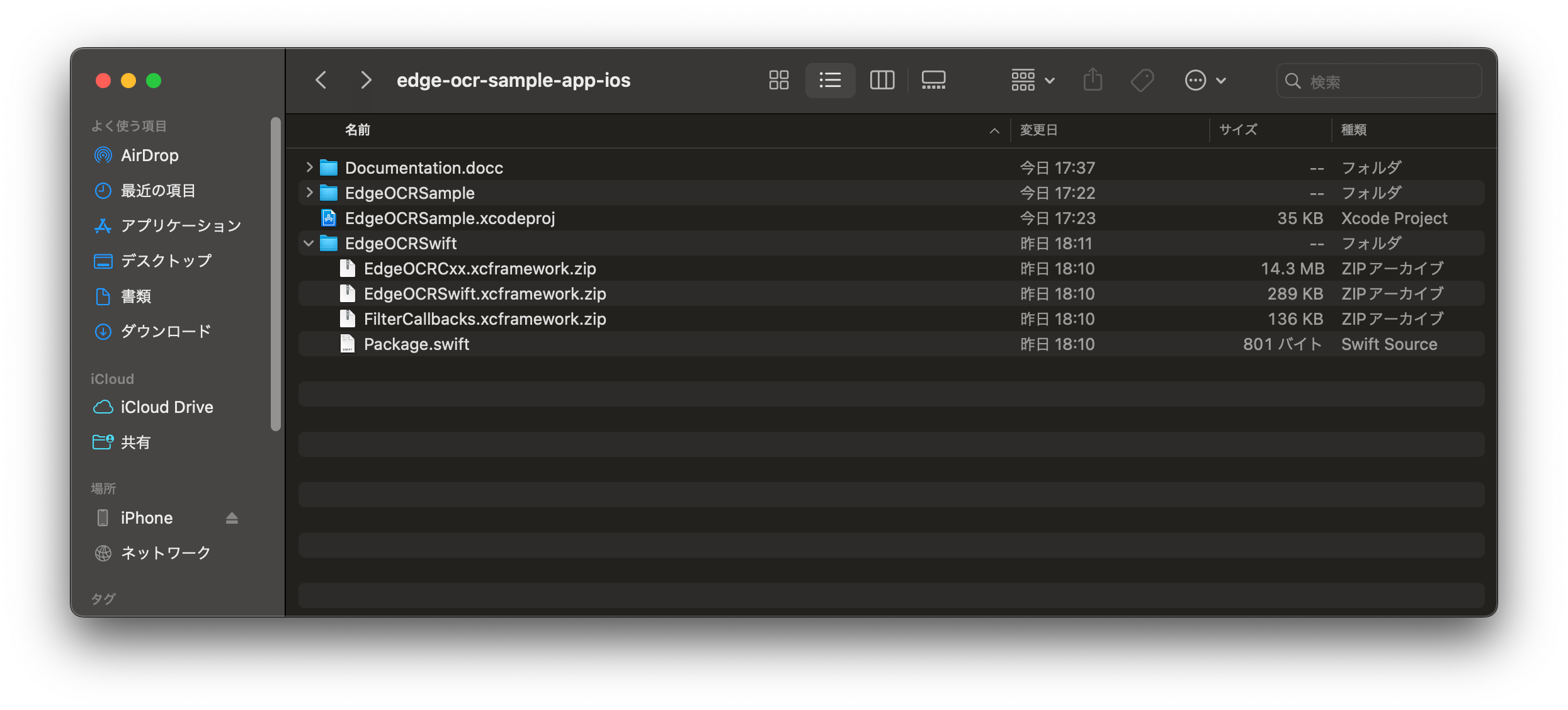
Place the SDK zip file in the root directory of your project and extract it.
-
Open the Package Dependencies tab in Xcode (
Project > Package Dependencies).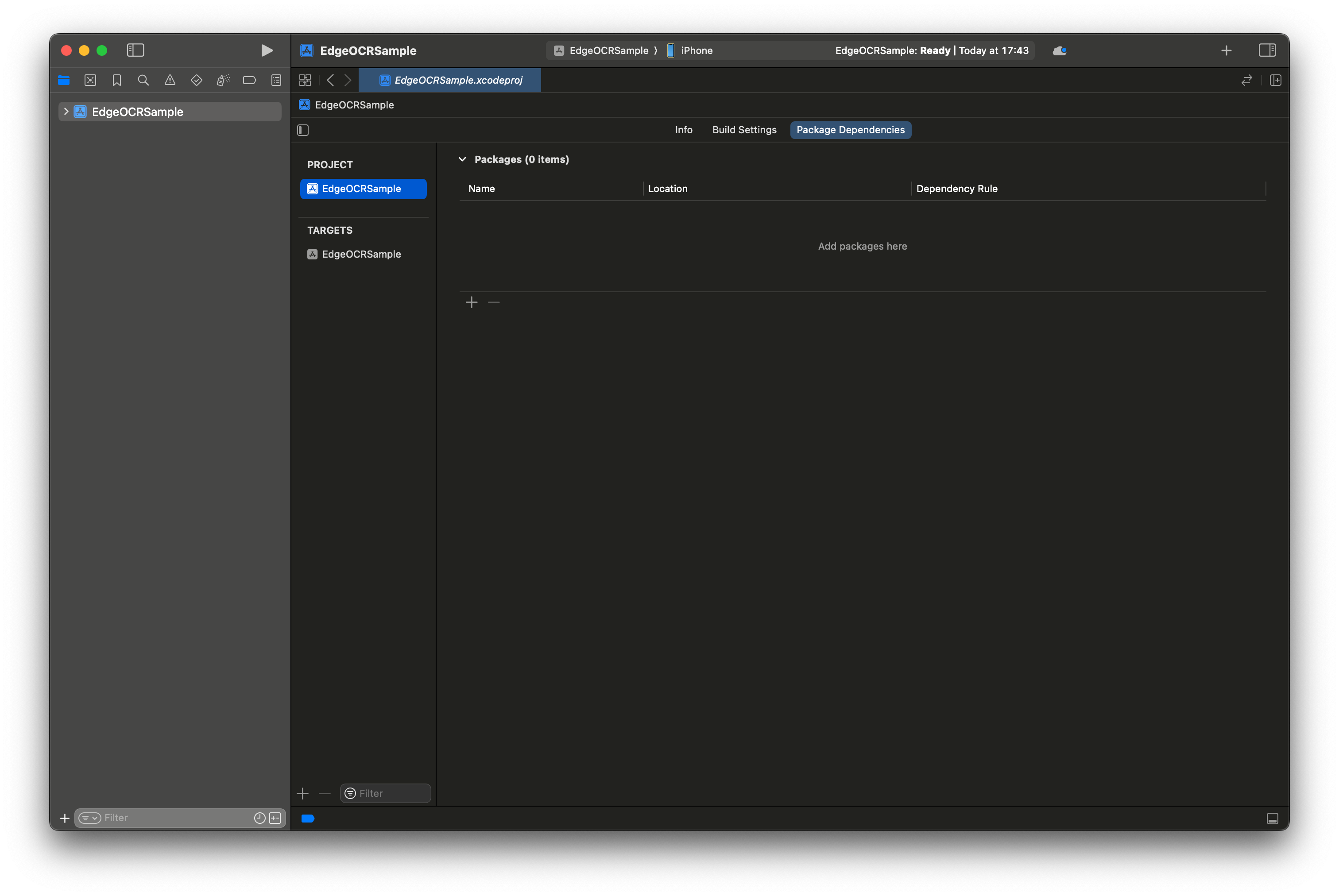
-
Click
+, select the extracted SDK folder, and click Add Package.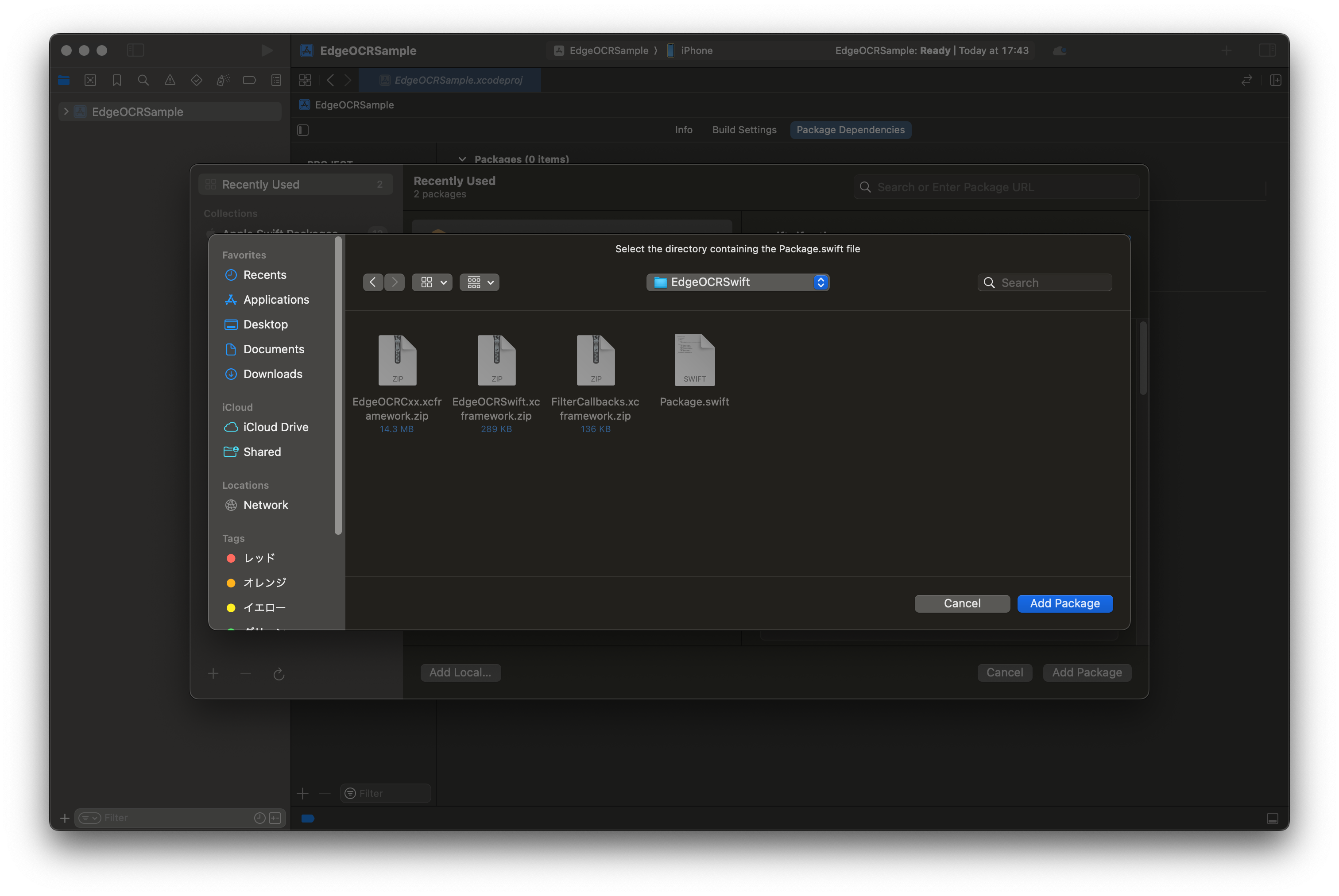
-
Click Add Package in the Package Products confirmation dialog.
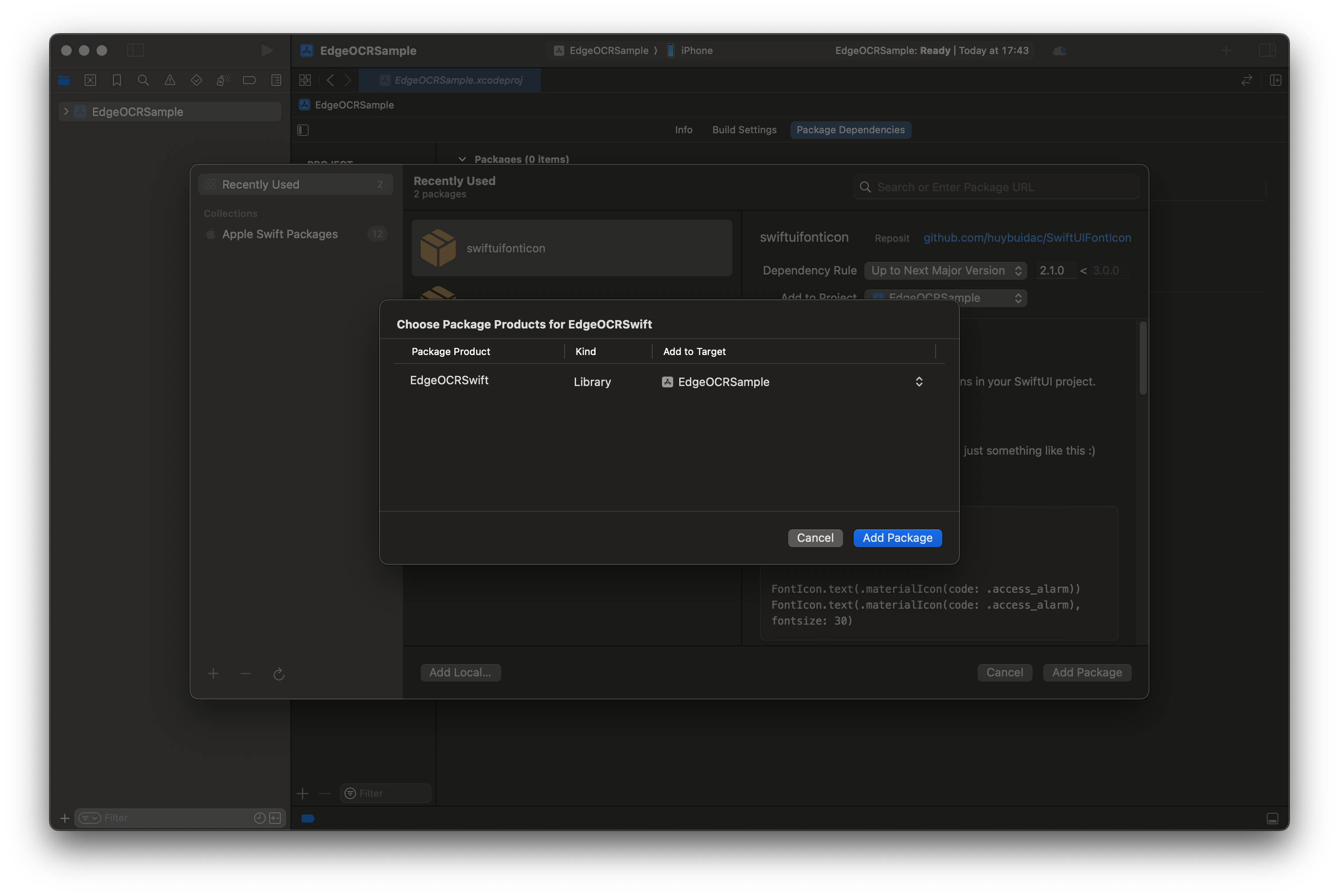
The SDK version and the version expected by the sample app must match.
-
Place the SDK zip file in the root directory of your project and extract it. This creates the
edge_ocr_sdk_mavendirectory. -
Reference the local Maven repository in
settings.gradle.dependencyResolutionManagement {
repositories {
// ...
maven {
url "$rootDir/edge_ocr_sdk_maven"
}
}
} -
Add the dependency to
app/build.gradle.dependencies {
// ...
implementation "com.nefrock.edgeocr:edgeocr:<version>"
}
The SDK version and the version expected by the sample app must match. Make sure it matches the version of the SDK you downloaded.
2. Adding Model Files
Add the OCR model files used by the SDK to your project.
- iOS (Swift)
- Android (Java)
-
Extract the downloaded model file zip and add it to your project in Xcode via Add Files to [Project Name].
-
Set the
modelPathinMainView.swiftto match the name of the model directory you added.let modelPath = "models" // Name of the added model directoryInternally, the SDK resolves the model directory using
Bundle.main.path(forResource: modelPath, ofType: "").
- Place the model file zip in the
app/src/main/assetsdirectory and extract it. - Rename the extracted folder to
models(or change the path in your code to match the folder name).
EdgeVisionAPI api = new EdgeVisionAPI.Builder(context)
    .fromAssets("models")
    .build();
3. Build Configuration (Android Only)
- Android (Java)
Verify the following settings in app/build.gradle.
android {
    compileSdk 36

    defaultConfig {
        minSdk 26
        targetSdk 36
    }

    java {
        toolchain {
            languageVersion = JavaLanguageVersion.of(17)
        }
    }
}
Once configured, run a build in Android Studio and verify that there are no errors.