Camera Setup
- iOS: ViewController.swift
- Android: SimpleTextScannerActivity.java
To perform OCR, you need to pass camera frames to the SDK. This page explains how to set up the camera.
1. Camera Permission Settings
- iOS (Swift)
- Android (Java)
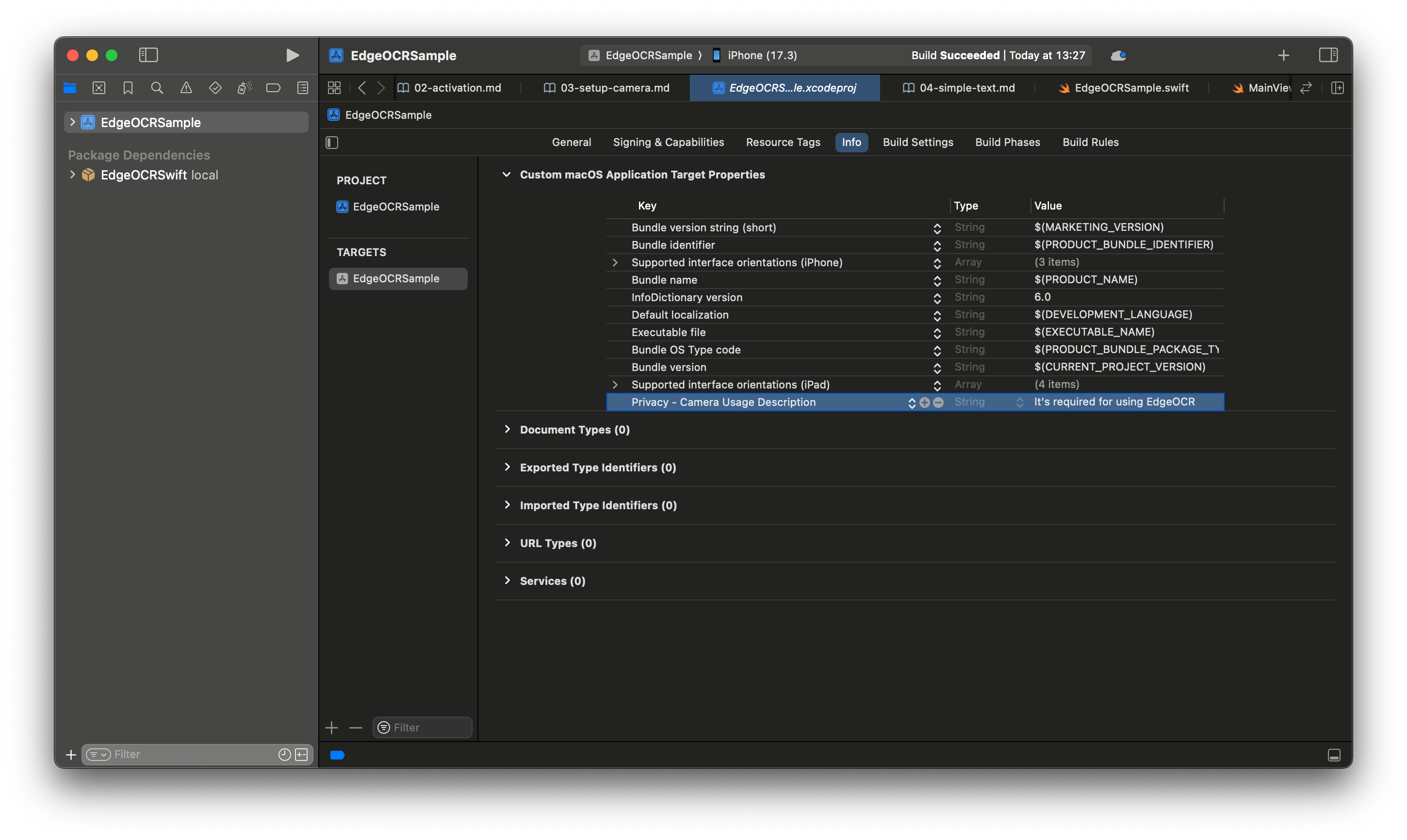
Add a camera usage description to Info.plist.
Open Project > Info > Custom iOS Target Properties in Xcode and add Privacy - Camera Usage Description with an appropriate usage description.
Add the following permissions to AndroidManifest.xml.
<uses-permission android:name="android.permission.CAMERA" />
<uses-feature android:name="android.hardware.camera" />
<uses-feature android:name="android.hardware.camera.autofocus" />
2. Camera Session Configuration
- iOS (Swift)
- Android (Java)
Set up camera input and output using AVCaptureSession.
import AVFoundation

private let captureSession = AVCaptureSession()
private lazy var videoOutput = AVCaptureVideoDataOutput()

func setupCaptureSession() {
    guard let videoDevice = AVCaptureDevice.default(
        .builtInWideAngleCamera, for: .video, position: .back
    ) else { fatalError("Camera device not found") }

    let videoDeviceInput = try! AVCaptureDeviceInput(device: videoDevice)
    captureSession.addInput(videoDeviceInput)
    captureSession.addOutput(videoOutput)
    captureSession.sessionPreset = .high

    let sampleBufferQueue = DispatchQueue(label: "sampleBufferQueue")
    videoOutput.setSampleBufferDelegate(self, queue: sampleBufferQueue)
    videoOutput.alwaysDiscardsLateVideoFrames = true

    // The pixel format must be set to kCMPixelFormat_32BGRA
    videoOutput.videoSettings = [
        String(kCVPixelBufferPixelFormatTypeKey): kCMPixelFormat_32BGRA
    ]
    videoOutput.connection(with: .video)?.videoRotationAngle = 90.0
}
The SDK requires kCMPixelFormat_32BGRA. Specifying a different format will cause incorrect behavior.
Use CameraX ImageAnalysis.
import androidx.camera.core.ImageAnalysis;

ImageAnalysis imageAnalysis = new ImageAnalysis.Builder()
    .setOutputImageFormat(ImageAnalysis.OUTPUT_IMAGE_FORMAT_YUV_420_888)
    .setBackpressureStrategy(ImageAnalysis.STRATEGY_KEEP_ONLY_LATEST)
    .build();
OUTPUT_IMAGE_FORMAT_YUV_420_888— The image format accepted by the SDK.STRATEGY_KEEP_ONLY_LATEST— Keeps only the latest frame and performs non-blocking analysis.
3. Per-Frame OCR Processing
Pass each frame captured from the camera to the SDK to perform OCR.
- iOS (Swift)
- Android (Java)
Call scan inside the AVCaptureVideoDataOutputSampleBufferDelegate's captureOutput method.
func captureOutput(
    _ output: AVCaptureOutput,
    didOutput sampleBuffer: CMSampleBuffer,
    from connection: AVCaptureConnection
) {
    guard let scanResult = try? api.scan(
        sampleBuffer,
        viewBounds: viewBounds,
        cropRect: cropRect
    ) else { return }

    let detections = scanResult.getTextDetections()
    for detection in detections {
        let text = detection.getText()
        if !text.isEmpty {
            print("detected: \(text)")
        }
    }
}
Call scan inside the ImageAnalysis.Analyzer.
imageAnalysis.setAnalyzer(analysisExecutor, image -> {
    if (!api.isReady()) {
        image.close();
        return;
    }
    try {
        ScanResult scanResult = api.scan(image);
        List<Text> detections = scanResult.getTextDetections();
        for (Text detection : detections) {
            String text = detection.getText();
            if (!text.isEmpty()) {
                Log.d("EdgeOCR", "detected: " + text);
            }
        }
    } catch (EdgeError e) {
        Log.e("EdgeOCR", "Failed to analyze image", e);
    } finally {
        image.close();
    }
});
Always call image.close() in the finally block. If you do not close it, the next frame will not be delivered.